Contents
Asset Management
Assets tracks equipment, tools, vehicles, software licenses, and other items through their full lifecycle - from purchase through retirement. Each asset record links to depreciation schedules, certifications, purchase orders, and employee assignments.
Keep Asset Types configured accurately: they control the Tangible/Intangible classification and set default depreciation for every asset of that type. Getting classification right up front keeps your reporting clean and ensures the right controls (like Asset Usage) appear for the right assets.
Quick Start
Use the shortest path that matches the job:
- Go to Inventory -> Management -> Assets and click Add Asset for one-off asset entry.
- Open an existing asset from the list when you need to update details, retire it, or restore it.
- Use the Assets tab on a purchase order when capital equipment should create asset records during receiving.
- Use Utilities -> General -> Import and Export -> Assets for bulk asset loads.
| Path | Inventory → Management → Assets |
| View permission | Security ID 26 (View Assets) |
| Add/modify permission | Create/Modify Asset |
Adding an Asset
Click Add Asset on the Assets list to open a new asset form.
Add Asset only appears when you have “Create/Modify Asset” permission and the Status filter is not set to Active.
Asset Tag is auto-generated (format A-#####) - the field is read-only on new records. Fill in Description, Asset Type, and other applicable fields, then click Save (available in the top and bottom control bars).
The Add button in the top bar creates a new blank record without leaving the current form flow.
Searching and Filtering
Search bar: Type a value and choose a field from the in dropdown: Asset, Description, Type, Serial, Location, Manufacturer, Supplier, Owner, Install Date, Warranty Date, or Maint.
Warehouse filter: Narrow the list to a specific warehouse.
Status filter: All | Tangible | Intangible | Active | Retired | Outstanding
| Status option | What it shows |
|---|---|
| Tangible / Intangible | Assets whose Asset Type is flagged Tangible or Intangible |
| Active | Currently active assets |
| Retired | Deactivated assets still kept for history |
| Outstanding | Assets in a post-receive pending state (shown after PO asset receipt) |
Export the current list with the Print, CSV, or XLSX buttons in the toolbar.
Editing an Asset
Click the pencil icon in the Edit column. Make changes, then click Save.
Top bar: Save · Add · Back · List · Bulk Edit · View Image · View PDF Bottom bar: Save · Copy · Retire (or Restore) · Customize
| Control | What it does |
|---|---|
| Bulk Edit | Opens the bulk edit grid for all assets at once |
| Copy | Copies this asset to a new record |
| Customize | Adjusts the screen layout for this form |
| Asset Usage | Manages parent/child asset hierarchy - only appears for Tangible assets |
View Image and View PDF in the top bar link to any image or PDF document attached to the asset.
Retiring and Restoring an Asset
To retire: Open the asset edit form → click Retire (bottom bar) → confirm in the overlay dialog. The asset is deactivated and the button becomes Restore on the next load.
To restore: Set Status filter to Retired (or All) → open the retired asset → click Restore → confirm.
Retired assets remain in the system for history and reporting. Use the Retired or All status filter to find them.
Asset Fields
Fields are organized into four sections on the edit form.
Main section
| Field | Notes |
|---|---|
| Asset Tag | Auto-generated (A-#####); read-only on new records |
| Description | Full asset name |
| Asset Type | Determines Tangible/Intangible classification and default depreciation |
| Serial # | Manufacturer serial number |
| Location | Physical location or department (255 chars) |
| Manufacturer | Make or brand |
| Supplier | Supplier the asset was sourced from |
| Owner | Employee responsible for the asset |
| Memo | Free-text notes |
Asset Attributes section
| Field | Notes |
|---|---|
| Used By | Employee currently using the asset |
| Parent Asset | Links to a parent asset for hierarchical equipment setups |
| Center Code | Cost center assignment |
| Model | Product model name |
| RFID Tag | Separate 255-char field for RFID systems; distinct from Asset Tag |
| Daily Labor Hours / Cost / Down Hours | Per-asset labor and downtime tracking |
| Renewal Date | For recurring licenses or contracts |
Cost and Depreciation section
| Field | Notes |
|---|---|
| Installation Cost | Primary cost field; used as the depreciation calculation basis |
| Replacement Cost | Current estimated replacement value |
| Installation Date / Purchase Date | Timeline for depreciation and warranty tracking |
| Warranty Date | Coverage start reference date |
| Expiration Date | End of coverage or contract |
| Warranty | Freetext description of coverage terms |
| Depreciation Method 1 / 2 | Up to two methods per asset; override Asset Type defaults |
| Depr. #1 Salvage / Depr. #2 Salvage | Per-asset salvage value percentage overrides |
| Current Count / Asset Capacity | Required for Units of Production depreciation |
Inspections/Certifications section
| Field | Notes |
|---|---|
| Under Maintenance | Checkbox flag - not a Status filter option |
| Req/Periodic Certification | Enable recurring certification requirement |
| Certification Interval | Numeric count (e.g., 6) |
| Certification Units | Interval unit: Days, Months, or Years |
| Req/Periodic Inspection | Enable recurring inspection requirement |
| Inspection Interval | Numeric count |
| Inspection Units | Interval unit: Days, Months, or Years |
Certification and inspection records are tracked separately from the asset form. See Certifications and Inspections below.
Depreciation
Each asset supports up to two independent depreciation schedules (e.g., one for book reporting, one for tax). Methods and salvage values are inherited from the Asset Type but can be overridden per asset.
The depreciation basis is always Installation Cost - there is no separate Purchase Price field.
Supported methods
| Method | How it calculates |
|---|---|
| Straight Line | Spreads cost evenly over the asset’s useful life |
| Units of Production | Based on Current Count against Asset Capacity |
| Declining 200% (Double Declining) | Accelerated; 200% of the straight-line rate per year |
| Declining 150% | Accelerated; 150% of the straight-line rate |
| Declining 100% | 100% of the straight-line rate in declining balance form |
| Sum of Years Digits | Front-loads depreciation using remaining life fraction |
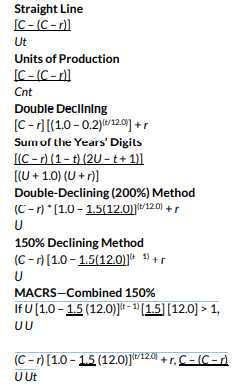
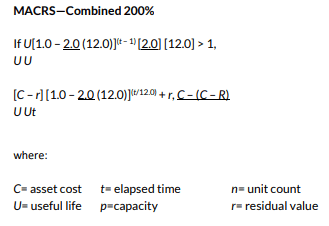
Methods labeled MACRS-Combined in the system use the Declining 150% or 200% engine. The description on the Depreciation Methods record determines the displayed label. The Formula field on each record is descriptive text - the engine matches by record ID, not by executing the formula string.
Configuring depreciation methods
Path: System → Lists → System Lists → Assets & Repairs tab → Depreciation Methods
Use this list to control which depreciation methods appear in asset records and how they are labeled for users. Keep the detailed record maintenance on the System Lists documentation page.
Configuring Asset Types
Asset Types set the Tangible/Intangible classification and default depreciation for all assets of that type.
Path: System → Lists → System Lists → Assets & Repairs tab → Asset Types Also accessible via the Asset Types button on the Assets list.
Use Asset Types to set whether a record is Tangible or Intangible and to define the default depreciation methods, salvage percentages, and life values that new assets inherit. Per-asset salvage settings still override the type defaults.
Certifications and Inspections
Use the Inspections/Certifications section on the asset edit form to configure recurring certification or inspection schedules. Set the Interval and Units, then check Req/Periodic Certification or Req/Periodic Inspection.
Certification and inspection records are separate from the asset form and open in a dedicated popup viewer. See Certification and Inspections for the broader workflow and compliance context.
Asset Catalog Entry is a separate print-friendly view of an existing asset record. Treat it as a secondary print utility rather than part of the normal asset workflow.
Receiving Assets via Purchase Order
Capital equipment can be received through a purchase order, which automatically creates linked asset records.
Path: Orders → Purchasing → Purchase Orders → open a PO → Assets tab
The tab is labeled Assets in the standard PO view and PO Assets in the Deliveries view.
Steps:
- Open a purchase order.
- Click the Assets tab.
- For each line, enter: Asset Type, Asset Description, Tag Style/Asset Tag, Units, and Price.
- Click Save - the system validates Asset Tag uniqueness before storing. Use Add Line to add more lines and Delete to remove one.
- When ready, click Receive and confirm in the overlay dialog.
- The system creates asset records and redirects to the Assets list filtered to Outstanding.
Open each asset from the Outstanding-filtered list to complete the record with location, employee assignment, warranty details, and depreciation schedule.
Auto-populated fields on receipt
| Asset Field | Source |
|---|---|
| Description | PO asset line description |
| Asset Type | PO asset line type |
| Asset Tag | PO asset line tag value |
| Supplier | Purchase order supplier |
| Installation Cost | Units × price |
| Replacement Cost | Same as Installation Cost |
PO asset lines vs. regular PO lines
| Regular PO Lines | Asset PO Lines | |
|---|---|---|
| Destination | Inventory stock | Asset register |
| Tracking | Quantity-based | Individual asset records |
| Fields | Item, units, cost | Asset type, tag, description, units, price |
Bulk Import
To load a large number of assets at once, use the Import and Export page.
Path: Utilities → General → Import and Export → Assets row
Download the template (InventoryPro_Asset.xlsx), fill in the data, then upload as CSV, XLS, or XLSX. Supported fields: asset tag, description, asset type, serial number, manufacturer, supplier, location, owner, model, installation date, installation cost.
See Import and Export for template download and full import procedures.
Related Topics
- Certification and Inspections - certification records and compliance workflows
- System Lists - Asset Types, Depreciation Methods, Warranty Policies
- Import and Export - template download and import procedures
On this page