Contents
Move Stock
Moving inventory changes item locations without affecting on-hand quantities. Inventory Pro supports multiple workflows for different movement scenarios:
| Moving Method | Access Path | Purpose |
|---|---|---|
| Locate/Move | Inventory → Stock → Locate / Move | Advanced search and movement with multi-criteria filtering |
| Move Stock | Inventory → Stock → Move Stock | Direct location changes for warehouse reorganization, put-away, and batch movements |
| Cycle Counting | Inventory → Stock → Cycle Counts | Location corrections identified during physical counts with variance tracking |
| Mobile Moving | Inventory Pro Mobile → Inventory → Move Stock | Mobile device movements with barcode scanning and real-time updates |
| Transit Slips | Transit between warehouses | Inter-warehouse transfers with documentation and approval workflows |
| Reporting | Reports → Movement History | Analyze movement patterns, location utilization, and audit trails |
All movements are tracked in the audit trail and material logs with full transaction details for accountability and location accuracy.
Quick Start
To move an item to a new location:
- Go to Inventory → Stock → Move Stock
- Select the Warehouse
- Add a line - enter or scan the Item ID, set From Location and To Location, and enter the quantity
- Click Save to stage the movement, then Move to update locations
For inter-warehouse transfers, check Transit first. The header changes to show From Warehouse, To Warehouse, and To Location.
Access: Inventory → Stock → Move Stock
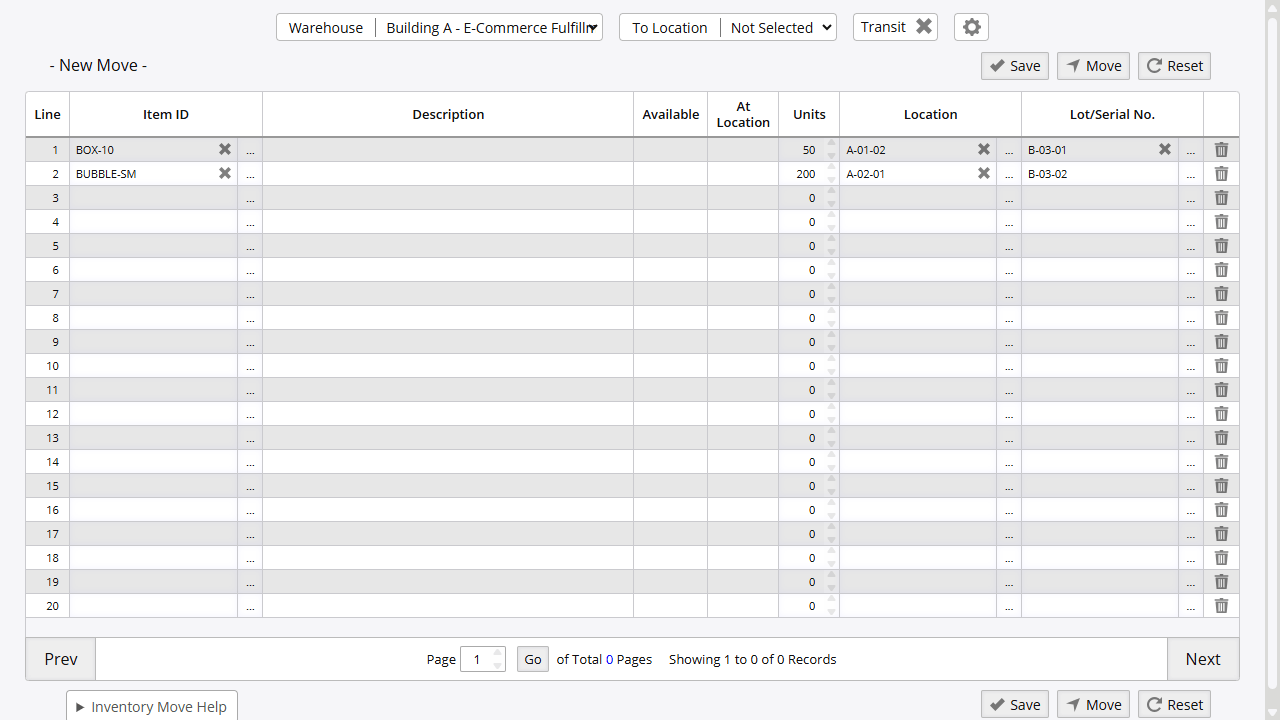
Understanding the Move Grid
The move screen uses a temporary staging area where you can add items, make corrections, and review before finalizing. This two-step process (Save → Move/Transit) prevents accidental location changes.
Screen Components:
- Warehouse: Select the source warehouse (required). Relabels to From Warehouse when Transit mode is active.
- Transit Checkbox: Enable for inter-warehouse transfers. When checked, the header shows From Warehouse, To Warehouse, and To Location.
- To Warehouse: Destination warehouse (transit mode only)
- To Location: Destination location within the To Warehouse (transit mode only)
- Item Selection: Choose items to move via search or barcode scan
Key Operations:
- Save: Stores items in temporary staging area without updating locations. Allows review, modifications, and building up movements over time. Items remain until finalized or reset
- Move: Finalizes intra-warehouse movements, immediately updates item locations, and creates permanent audit trail. Cannot be undone
- Transit (Checkbox): Switches to inter-warehouse transfer mode. Relabels the Warehouse header to From Warehouse and reveals To Warehouse and To Location fields.
- Reset: Clears all temporary items and starts fresh
- Trashcan Icon: Marks a line to be removed when you save
Movement Methods
Locate/Move (Search and Transfer)
The Locate/Move interface combines advanced search capabilities with movement functionality and transit slip management.
Access: Inventory → Stock → Locate / Move
Advanced Search Capabilities:
Search Criteria Options:
- Item ID: Direct part number or barcode lookup
- Description: Text-based item description search
- Supplier: Filter by supplier
- Customer: Search by customer association (leased items)
- Location: Specific warehouse location search
- Receiving Reference: Find by receiving document number
- Serial Numbers: Primary and alternative serial number lookup
- RFID Tags: Radio frequency identification tag search
- Job Assignment: Items assigned to specific jobs
- Remarks: Search within item remarks and notes
Date Range Filtering:
- Receiving Date Range: Filter by when items were received
- Expire Date Range: Search by expiration or best-by dates
Workflow:
- Enter search criteria (item, location, serial number, etc.)
- Review search results showing current locations and quantities
- Select items to move and specify destination
- Click an action button to execute
Action Buttons:
| Button | Purpose |
|---|---|
| Locate/Move Units | Execute a standard intra-warehouse move |
| Direct Transit | Execute a direct inter-warehouse transfer immediately without a separate receiving step (Admin Option 507 enabled) |
| Place In Transit | Place selected units in transit to another warehouse, requiring a separate receive step at the destination (Admin Option 507 disabled) |
| Receive Transit | Receive units previously placed in transit from another warehouse (Admin Option 507 disabled) |
| Repair | Flag selected units for repair |
| Reset | Clear the current selection |
Tips:
- Wildcards are supported - use partial item IDs, descriptions, or serial numbers to narrow results
- Combine multiple criteria to search across all warehouses simultaneously
- Export search results before large reorganization projects for planning and verification
- Verify item status (available, on hold, in transit) before moving
- Use receiving reference to track items by receiving batch
Move Stock
The move stock screen provides direct location changes within warehouses or between warehouses.
Access: Inventory → Stock → Move Stock
When to Use:
- Put-away after receiving to final storage locations
- Warehouse reorganization or optimization
- Small to large location corrections (1-100+ items)
- Consolidating inventory from multiple bins
- Systematic location optimization projects
- Regular warehouse reorganization cycles
When NOT to Use:
- Inter-warehouse transfers (use Transit Operations)
- Location corrections with quantity changes (use Cycle Counting)
- Advanced search requirements (use Locate/Move)
Standard Workflow:
- Select source warehouse
- Ensure Transit checkbox is unchecked for intra-warehouse moves
- Choose destination:
- Select “To Location” dropdown for single destination
- Or specify per line for multiple destinations
- Add line items:
- Enter or scan Item ID
- Specify quantity to move
- Provide source location (or use Load All for FIFO)
- Enter destination location
- Add serial/lot numbers if required
- Save to stage multiple items
- Move when ready to update locations
Serial Number Workflow (Quick Scan Mode - Move2 View):
- Enter or scan Serial Number first
- System auto-populates:
- Item ID associated with the serial
- Current location (source)
- Available quantity (typically 1 for serialized items)
- Enter destination location
- Save to add line
This reverse workflow is faster for serialized inventory operations where staff scan items rather than searching by Item ID.
Grid Views:
Select different views based on your workflow preference:
- Move1: Basic view for standard operations with essential fields
- Move2: Serial quick scan mode - enter serial first, system populates item and location
- Move3: Location-focused view with enhanced location details (includes Alias column and per-line To Location)
Transit is a mode activated by the Transit checkbox, not a separate grid view.
Tips:
- Use Load All to automatically select oldest stock (FIFO/FEFO based on Admin Option 21)
- Process smaller batches (50-100 items) for better performance
- Use barcode scanning for faster data entry and fewer errors
- Review entire grid before executing to catch errors
- Save frequently to prevent data loss during large operations
- For serialized items, use Move2 view (quick scan mode) for faster processing
- Verify destination location exists before executing move
- For high-value items, verify quantities at source location first
Line Item Fields
Understanding field behavior helps ensure accurate movement processing:
| Field | Behavior | Notes |
|---|---|---|
| Item ID | Required | Must be active and have stock at source location |
| Units | Required, >0 | Quantity to move, cannot exceed available at source location |
| From Location | Required | Current physical location. Must have sufficient stock available |
| To Location | Required | Destination location. Must exist in warehouse location master and differ from source |
| Serial/Lot | Required for serialized items | Must match existing inventory records. System validates serial number exists at source location |
| Serial 2 | Optional | Alternative serial/lot number for items with secondary tracking (Admin Option 271) |
| RFID Tag | Optional | Radio frequency identification tag for RFID-enabled inventory tracking |
| Reference | Auto-generated or manual | Tracking number for cross-referencing with external documents. System auto-generates based on Admin Option 29 (moves) or 110 (transits) |
| Net Weight / Gross Weight | Optional | Weight tracking for shipping, handling calculations, and freight optimization |
| Remark | Optional | Free-text field for notes about this specific movement |
Transit Operations
Inter-warehouse transfers use transit slips for tracking inventory during movement between warehouses.
Transit Types:
- Staged Transits: Two-step process (ship → receive) placing items on hold during transfer
- Direct Transits: Immediate transfer to destination without intermediate staging (Admin Option 507)
When to Use Transits: Use the Inventory → Stock → Move Stock screen with the Transit checkbox enabled for basic inter-warehouse transfers, or use Inventory → Stock → Locate / Move for advanced transit operations with search capabilities.
See the Transit Stock documentation for complete transit workflows including staged transits, direct transits, restocking, receiving, and transit slip management.
Cycle Counting
Cycle counts identify location discrepancies during physical inventory verification and automatically correct locations.
Workflow:
- Navigate to Inventory → Stock → Cycle Counts
- Create count session and enter physical counts
- Review variance report showing location discrepancies
- Post to automatically move items to correct locations
See Cycle Counting for complete documentation.
Mobile Moving
Complete movement operations on mobile devices for increased flexibility and warehouse efficiency. Barcode scanning is supported for items, locations, serials, and RFID tags. Moves validate in real time, and offline mode captures movements when connectivity is unavailable - syncing automatically when it resumes.
Workflow:
- Navigate to Inventory → Move Stock
- Search for item by ID or description using the filter field, or tap Scan to scan a barcode
- Enter or scan source and destination locations
- Enter quantity to move and optional fields (serial, RFID, reference)
- Click Move to execute immediately, or Queue for batch processing
:::tip[Bulk Move Mode] When EnableBulkMove is enabled, you can queue multiple movements before submitting:
- Enter items and click Queue to add to batch
- Repeat for additional items
- Click Review tab to see all queued movements
- Review and remove lines if needed
- Click Move to execute entire batch
Ideal for high-volume put-away operations and when moving multiple items to the same destination. :::
Movement Validation and Controls
The system validates movements before execution and updates inventory in real-time:
Pre-Movement Validation:
- Items: Must be active (not discontinued) and enabled for destination warehouse (Admin Option 504)
- Stock Availability: Sufficient quantities at source location, not on hold or in transit
- Locations: Source and destination must exist, be active, differ from each other, and not be on hold
- Warehouses: Item must be enabled for destination warehouse; for transits, destination must differ from source
- Serial Numbers: Must exist at source location; serialized items require serial specification
- Permissions: Security ID 15 for Locate/Move actions, 361 for Move Stock grid operations, 303/305 for transits, plus approval permissions per Admin Option 124
Real-Time Updates: When movements execute, the system immediately updates location records while preserving cost basis, serial associations, item status (available/on hold/in transit/reserved/damaged), and creating complete audit trail entries.
Amendment and Correction System
The amendment system allows correction of historical inventory records:
Amendment Capabilities:
- Field Corrections: Modify specific data fields on inventory records
- Location Updates: Correct location assignments
- Serial Number Changes: Update or correct serial number information
- Cost Adjustments: Modify unit costs and pricing information
- Supplier Associations: Update supplier information
Amendment Process:
- Access Inventory → Stock → Locate / Move
- Search for specific inventory unit to amend
- Select record and choose amendment option
- Update required information fields
- System validates proposed changes
- Apply amendments to inventory records
Important: Amendments create audit trail entries showing before/after values for accountability.
Security Permissions
Movement operations require specific security permissions based on the type of movement:
| Security ID | Permission Name | Purpose |
|---|---|---|
| 15 | Locate/Move Units | Required for Locate/Move page actions - searching inventory, selecting items, and executing moves and transit operations from the Locate/Move screen |
| 361 | Move Stock (Grid) | Required for Move Stock grid page access and operations. Controls access to the staged move workflow including Save, Move, and Transit actions |
| 303 | Create/Modify Transit Slip | Create transit slips for inter-warehouse transfers. Required to initiate shipments from source warehouse and place items in transit status. Does not include receiving authority |
| 305 | Receive Transit Slip | Receive items from transit at destination warehouse. Required to complete inter-warehouse transfers by receiving transit slips and updating inventory at destination |
Permission Interactions:
- Users with only Security ID 15 can move items within their assigned warehouse
- Inter-warehouse transfers require either Security ID 303 (sending) or 305 (receiving) depending on the operation
- Direct transit mode (Admin Option 507) requires Security ID 303 and bypasses the need for separate receiving permission
- Transit slip approval workflows may require additional permissions based on Admin Option 124
Best Practice: Grant standard move permissions to warehouse staff who perform routine stock movement, and restrict transit permissions to users who manage inter-warehouse transfers.
Best Practices
Movement Planning:
- Plan movements during low-activity periods to minimize disruption
- Group similar items for batch processing efficiency
- Verify destination locations exist before executing large movements
- Use cycle counts to validate location accuracy after major reorganizations
Execution:
- Use barcode scanning for faster data entry and fewer errors
- Process movements in logical batches (by zone, category, or project)
- Verify source location has sufficient stock before attempting moves
- Double-check movements before execution to prevent errors
Location Management:
- Maintain clear and consistent location labeling
- Keep location maps and guides current
- Use logical location naming conventions (zone-aisle-bin)
- Implement regular location audits
Error Prevention:
- Use system validation to catch common errors before they happen
- Train staff on movement procedures and system usage
- Maintain standard operating procedures for movements
- Review movement accuracy reports regularly
Troubleshooting
“Insufficient stock at source location”
- Problem: Not enough inventory at specified source location
- Solution: Use Locate/Move search to find actual item location, verify physical inventory
- Prevention: Maintain accurate inventory records and use real-time lookup before moves
“Invalid destination location”
- Problem: Destination location doesn’t exist in location master
- Solution: Verify location spelling and existence, create location if needed
- Prevention: Use location dropdowns instead of manual entry, maintain current location master
“Cannot move items on hold”
- Problem: Items restricted due to quality hold or other status
- Solution: Review item status and release hold if appropriate, or move after resolution
- Prevention: Check item status before planning movements, coordinate with quality team
“Same source and destination location”
- Problem: Attempting to move item to its current location
- Solution: Verify source location and choose different destination
- Prevention: Use Locate/Move search to confirm current location before moving
“Transit slip not generating”
- Problem: System not creating transit documentation
- Solution: Verify printer settings and transit slip templates, check Admin Option 507 settings
- Prevention: Test transit slip generation regularly, maintain document templates
Admin Options
Key configuration options affecting movement operations:
| Option | Description |
|---|---|
| 23 | Default move screen view - determines which grid view loads by default (Move1, Move2, Move3) |
| 29 | Move transaction numbering format - defines reference number pattern for warehouse moves (e.g., M-#####) |
| 110 | Transit slip numbering format - defines reference number pattern for inter-warehouse transits (e.g., T-#####) |
| 124 | Transit slip approval requirement - when enabled, requires manager approval before receiving transit items |
| 504 | Enforce warehouse-specific item assignments - items must be enabled per warehouse to move there |
| 507 | Direct transits - when enabled, allows moving directly to destination location without intermediate receiving step |
Additional Features
Move Slip / Pick List
After executing a move, the system auto-generates a move slip (Report 120) with movement reference, source/destination locations, items with quantities and serials, and warehouse staff instructions. Access via the success message link or print from the movement screen.
Context Menu Operations
Right-click on any inventory line in the Locate/Move screen to access additional operations:
Record Management:
- Edit: Modify active stock record details (requires “Create/Modify Active Stock Record” permission)
- Amend: Create amendment to correct historical inventory data with full audit trail
Item Information:
- Warehouse Assignment: View/modify which warehouses can stock this item
- Re-Order Points: Update min/max quantities and reorder thresholds
- Supplier Catalog: View supplier pricing and lead times
Documentation:
- Label: Print location and serial number labels for barcode operations
- Images: View item photos and technical drawings
- Documents: Access datasheets, manuals, and certifications
Inventory Operations:
- Split Lot: Divide quantity into separate inventory records (useful for partial moves or different locations)
Lot Splitting
Split inventory lots to create separate records for partial movements or location distribution:
Workflow:
- Right-click inventory line and select “Split Lot”
- Enter quantity to split off (must be less than total units)
- System creates two separate inventory records:
- Original record with remaining quantity
- New record with split quantity
- Move new record independently
Use Cases:
- Partial location moves (move 50 of 100 units to new location)
- Distributing stock across multiple bins
- Separating inventory for different purposes (sale vs. reserve)
- Quality hold isolation (split and hold portion for inspection)
Important: Splitting preserves all record details (cost, dates, serial numbers, job assignments) except quantity.
Key Reports
Access movement reports via Reports → [Search] or direct access from movement screens.
Pick List - Move Stock (Report 120): Physical pick list auto-generated after executing moves, showing source/destination locations, items, quantities, and serial numbers for warehouse staff.
Audit Trail (Moves) (Report 128): Complete transaction log of all inventory movements with filtering by warehouse, item, location, date range, and user. Primary report for investigating discrepancies and compliance tracking.
Warehouse Locations (Report 56): Current inventory by location showing quantities, costs, and item details. Use for space utilization analysis and identifying consolidation opportunities.
Inventory Location (Report 187): Snapshot of current item locations with available quantities and on-hand values. Filter by item, warehouse, or location for rapid lookup.
Location In Time (Report 153): Historical location analysis showing inventory movements over specific date ranges. Track inventory flow patterns and identify bottlenecks.
Archived Inventory (Report 141): Historical records for items fully issued or removed from active inventory, including last known locations and final disposition.
All reports support filtering by date range, warehouse, item, location, and user. Export to Excel for further analysis.
Related Topics
- Receive Stock - Receiving inventory and positive adjustments
- Issue Stock - Issuing inventory and negative adjustments
- Cycle Counting - Physical inventory verification and location corrections
- Locate / Move - Advanced inventory search and tracking
- Import & Export - Bulk data loading procedures
Related Links
- Transit Stock - Inter-warehouse transfers with documentation and approval workflows
- Cycle Counting - Physical inventory verification and location corrections
- Audit Trail - Complete transaction history for all inventory movements
On this page